Set Up Your Organisation on AQUA-SMART: Members, Departments, PIFs and Invitations
AQUA-SMART Product Team, e-AQUAF Project (BSB01009)
Why Your Organisation Profile Matters
The AQUA-SMART partner directory is the entry point for anyone looking for a Black Sea consortium partner. What people see there, your logo, your thematic tags, your registered colleagues and your Participant Identification Form, comes entirely from what your organisation fills in under Profile → Organisation. The AI capitalization engine reads the same record when it ranks partners against a project idea, so a complete profile is not cosmetic: it directly changes how often you surface in someone else's match list.
This guide walks through the whole set-up in the order we recommend doing it.
1. Link Your Account to an Organisation
During sign-up you either select an existing organisation from the directory (477 organisations are pre-loaded from past ENPI, ENI and Interreg NEXT Black Sea Basin projects) or register a new one.
Selecting an existing organisation requires an email address on that organisation's domain. If your address does not match, the platform does not block you, it opens a join request that an administrator reviews. You will get an email when the request is approved or declined.
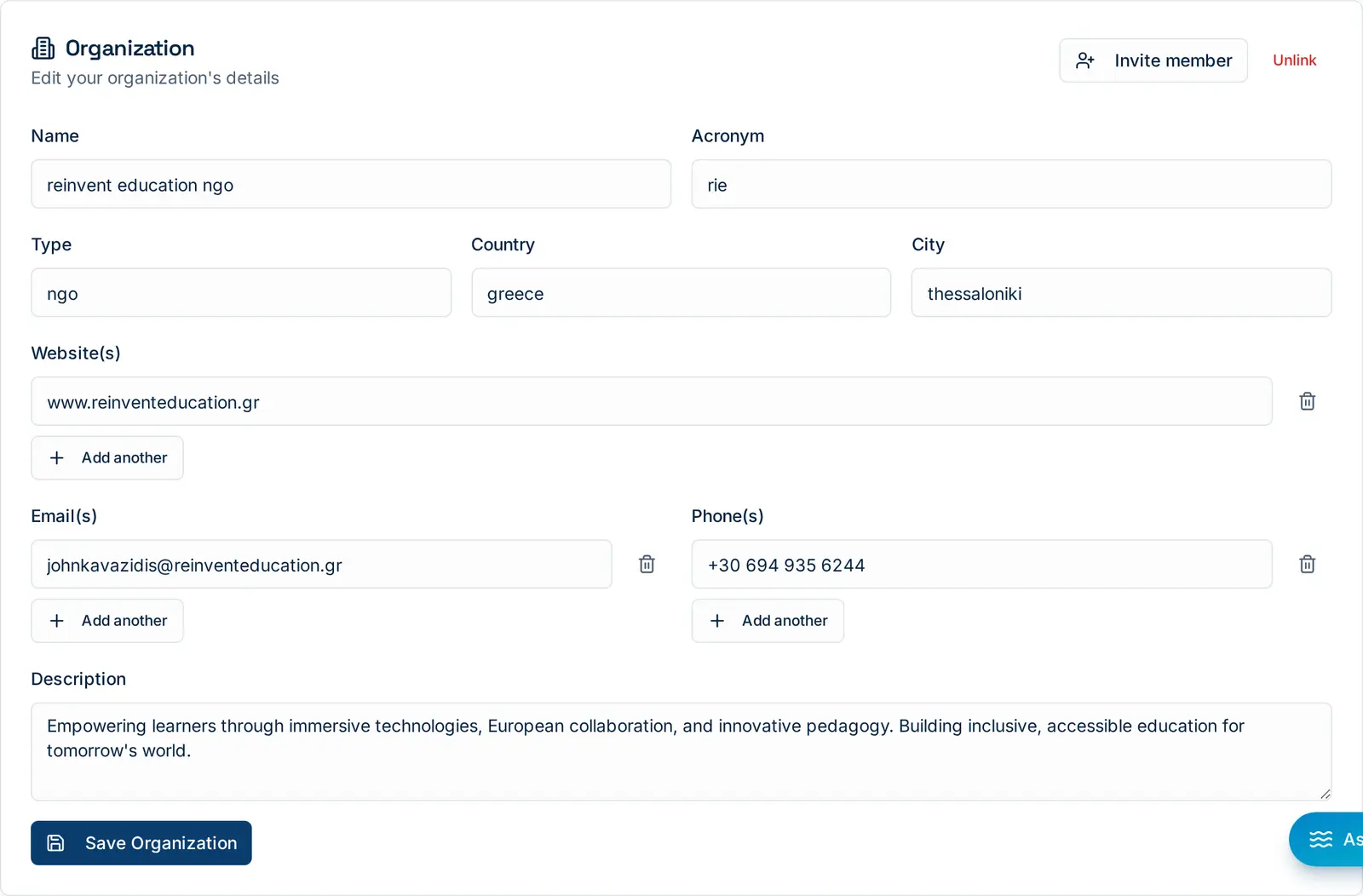
Everything on this card is public. Keep the name and acronym exactly as they appear in official programme documents, they are used for matching against historical project partner records.
2. Upload Your Logo
Under the same tab, the logo uploader accepts a PNG or JPG. The image is stored privately and served through signed URLs, and it appears immediately:
- next to your organisation name on every partner directory card
- in the hero of your partner profile page
- in chat, when your colleagues are listed by organisation

A square image of at least 256 × 256 px gives the cleanest result. You can replace or remove it at any time.
3. Create Departments and Assign Yourself
Larger institutes rarely act as a single block. A university may have a marine biology department, a technology transfer office and a project management unit, and a partner looking for a sensor engineer should be able to find the right one.
Any member of an organisation can create a department, give it a name, and then assign themselves to it.
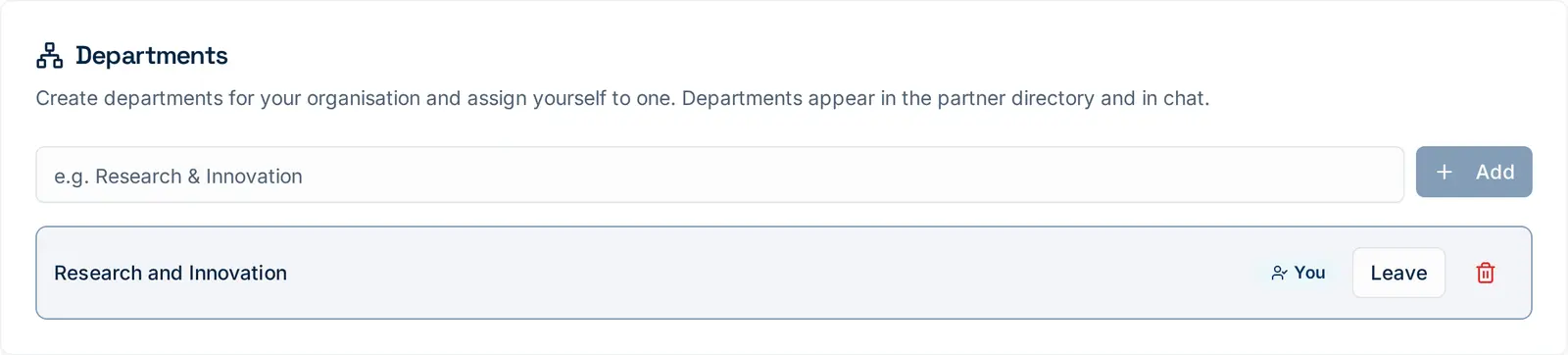
Once departments exist they show up in two places:
| Where | What people see |
|---|---|
| Partner profile → Registered users | Members grouped under their department heading, with live online / offline presence |
| Chat → New Conversation | The same grouping, so you can start a chat with the right person directly |
Members without a department still appear, they are simply listed outside any department group.
4. Upload Your PIF Documents
The Participant Identification Form is the standard document that describes an organisation's mandate, capacity and experience. AQUA-SMART lets each organisation store up to three PIF files (PDF or Word).
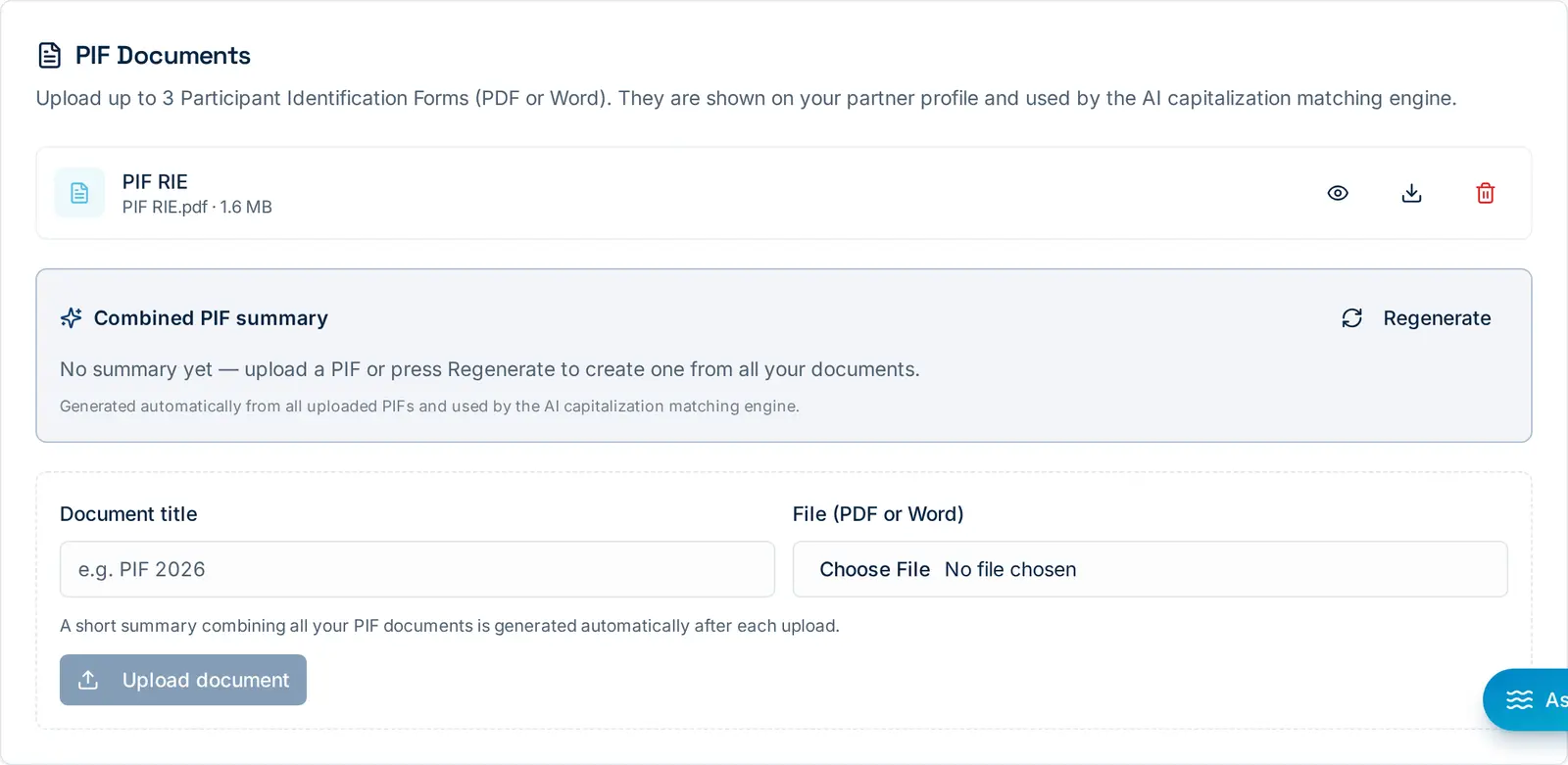
Three things happen after an upload:
- The file becomes downloadable from the partner directory. Anyone browsing partners sees a PIF badge and a direct download button on your card and inside your profile.
- The download is named for you. Files are delivered as
[Organisation]_PIF_[YYYY-MM-DD].pdf, so downloads stay organised on the other side. - An AI summary is regenerated automatically. The platform extracts the text of every uploaded PIF, combines them, and writes a factual ~110-word summary of the organisation. The summary is stored on the organisation record and is fed to the AI capitalization matching engine together with your thematic tags and project history.
That last point is the important one. If your PIF describes recirculating aquaculture systems, water quality sensors and hatchery management, the engine will start surfacing your organisation for exactly those searches, even if none of those words appear elsewhere in your profile.
5. Invite Colleagues to Your Organisation
There are two invitation paths, and they do slightly different things.
From Profile → Organisation
This is the organisational invite. You enter a colleague's email address, optionally add a personal message, and the platform sends a tokenised invitation link that is valid for 14 days. When the invitee accepts and completes sign-up, their account is linked to your organisation automatically, no join request, no domain check.
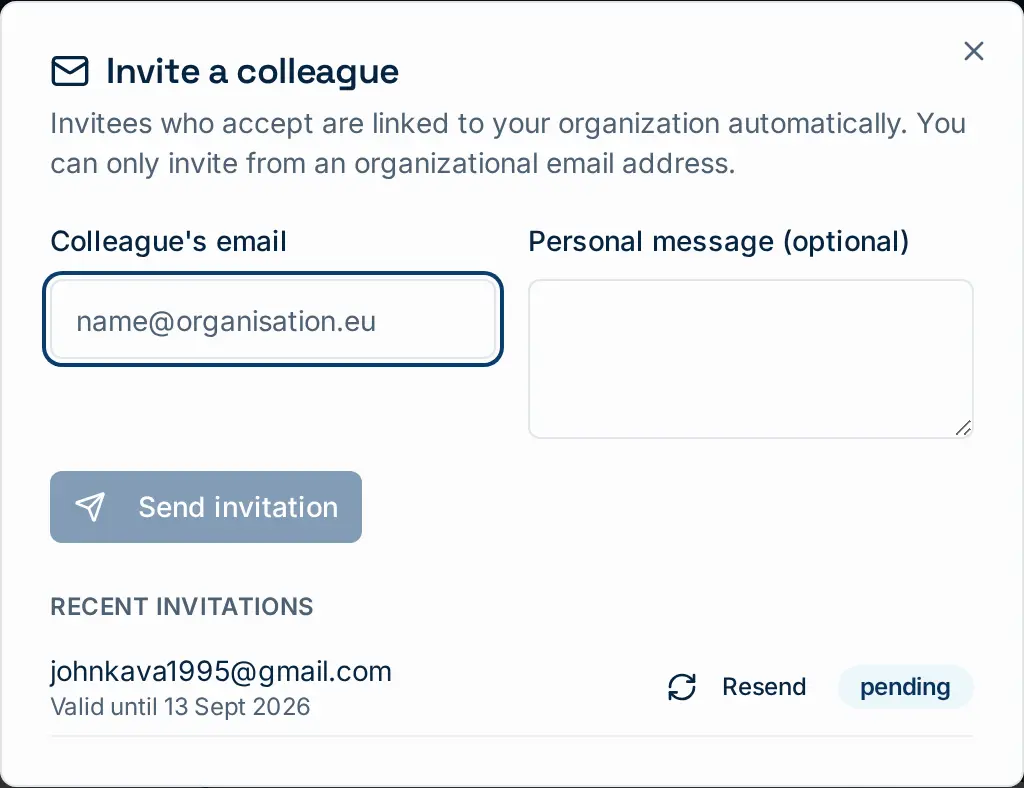
Pending invitations are listed underneath with their expiry date and a Resend action.
From Chat → New Conversation
Sometimes you only realise someone is missing when you go to message them. The New Conversation dialog lists everyone on the platform, filtered by All, My organisation or Unaffiliated, and grouped by organisation and department.
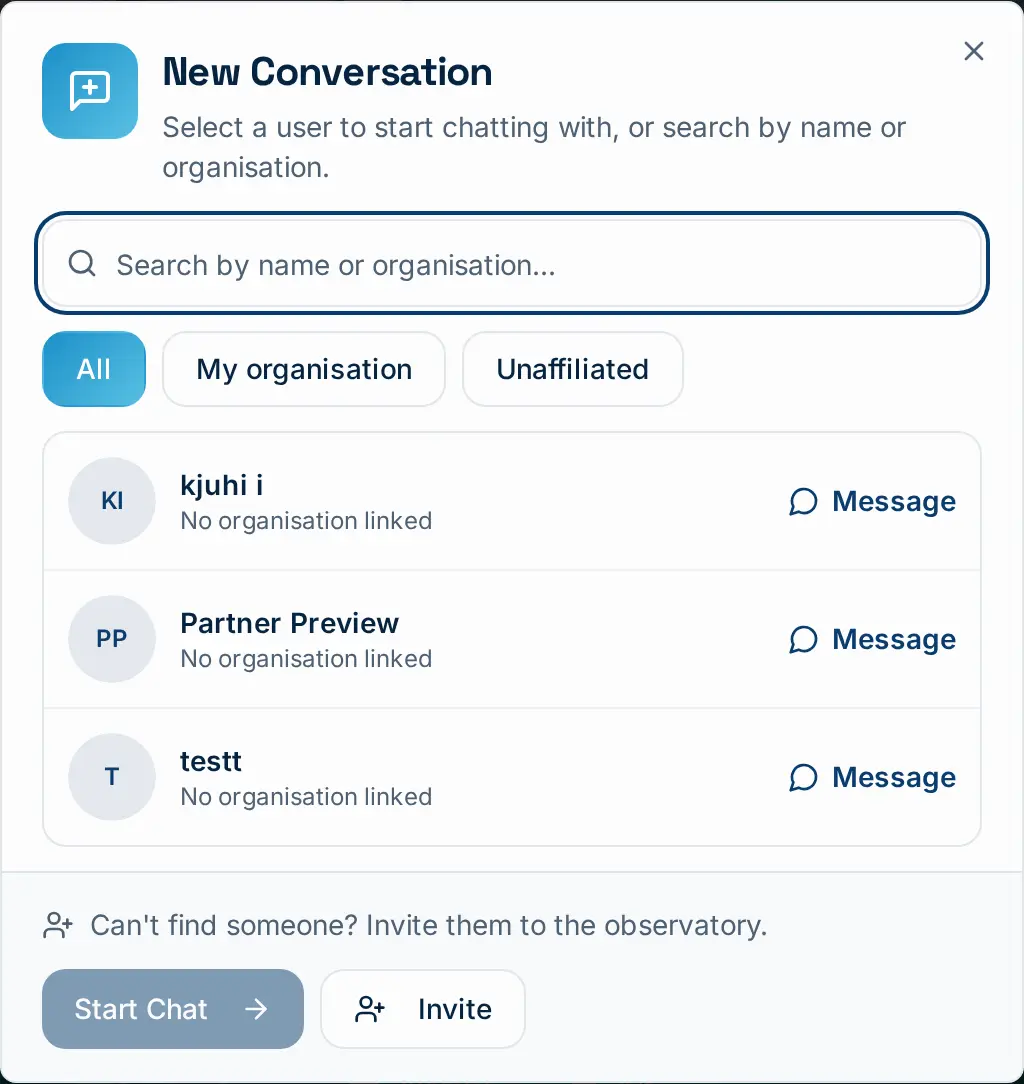
Next to Start Chat there is an Invite button for exactly this case.
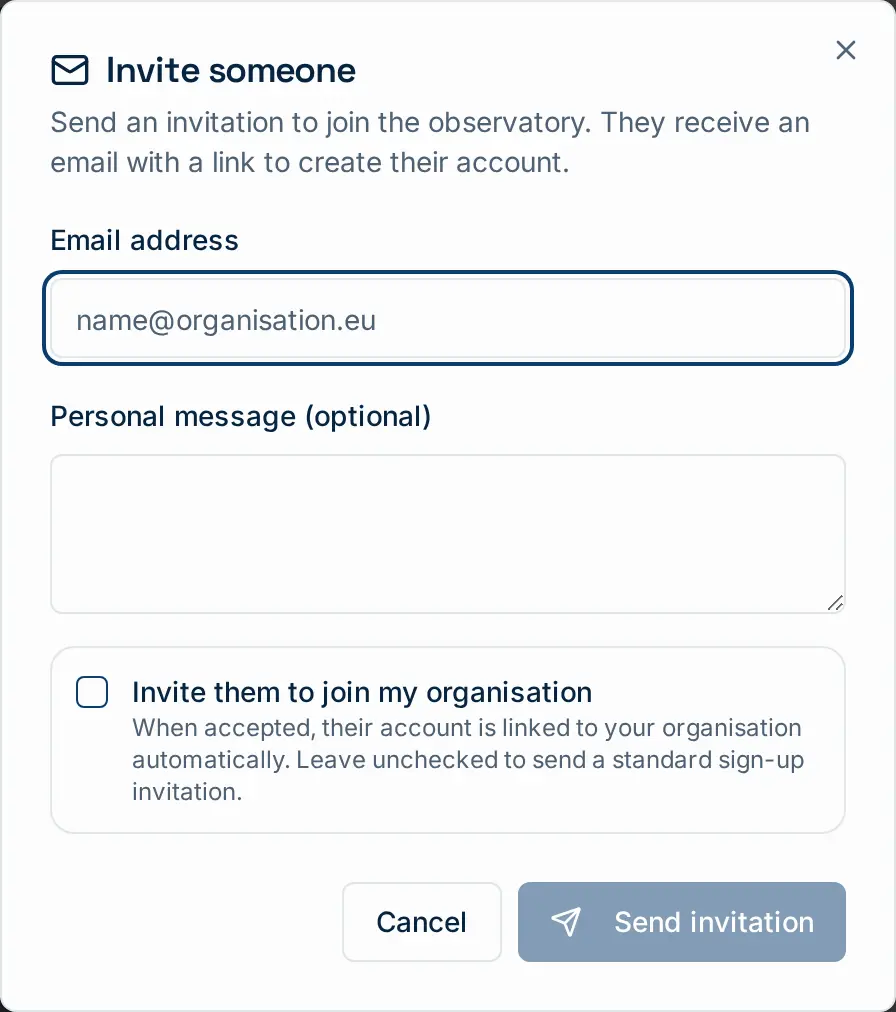
The checkbox is what decides the outcome:
| Checkbox | What the invitee gets | Result on acceptance |
|---|---|---|
| Ticked | An organisation invitation email in your name | Account created and linked to your organisation automatically |
| Unticked | A standard observatory sign-up invitation | Account created; they choose their own organisation during sign-up |
The organisation option only appears if you are yourself linked to an organisation.
6. Check How You Look to Everyone Else
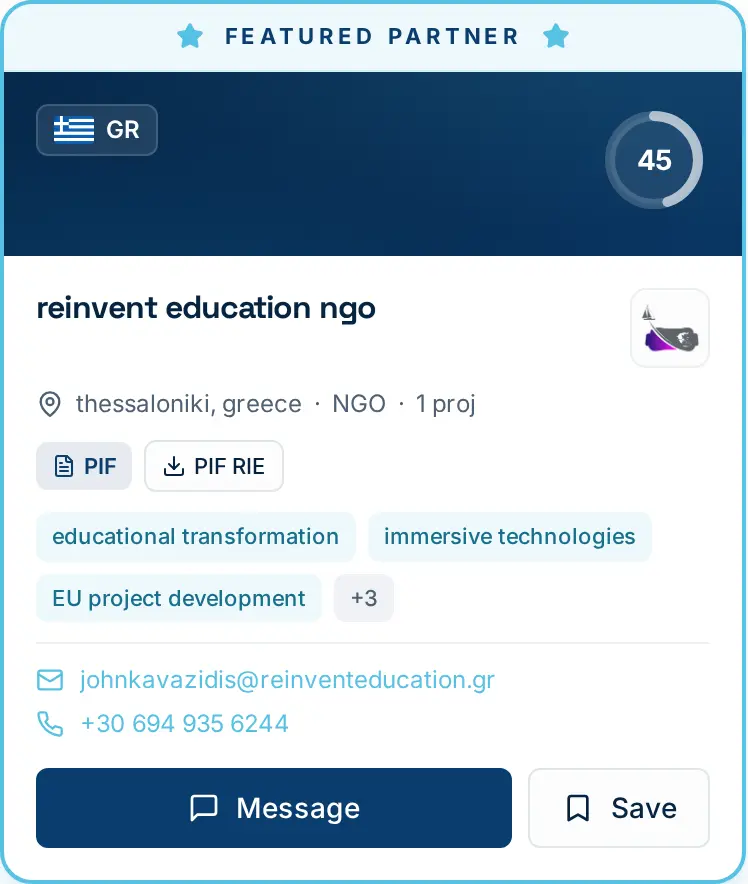
Open AI Capitalization → Partners and find your own card. It should show your logo, your country flag, your thematic tags, a PIF badge and a working download. Then open the profile itself.
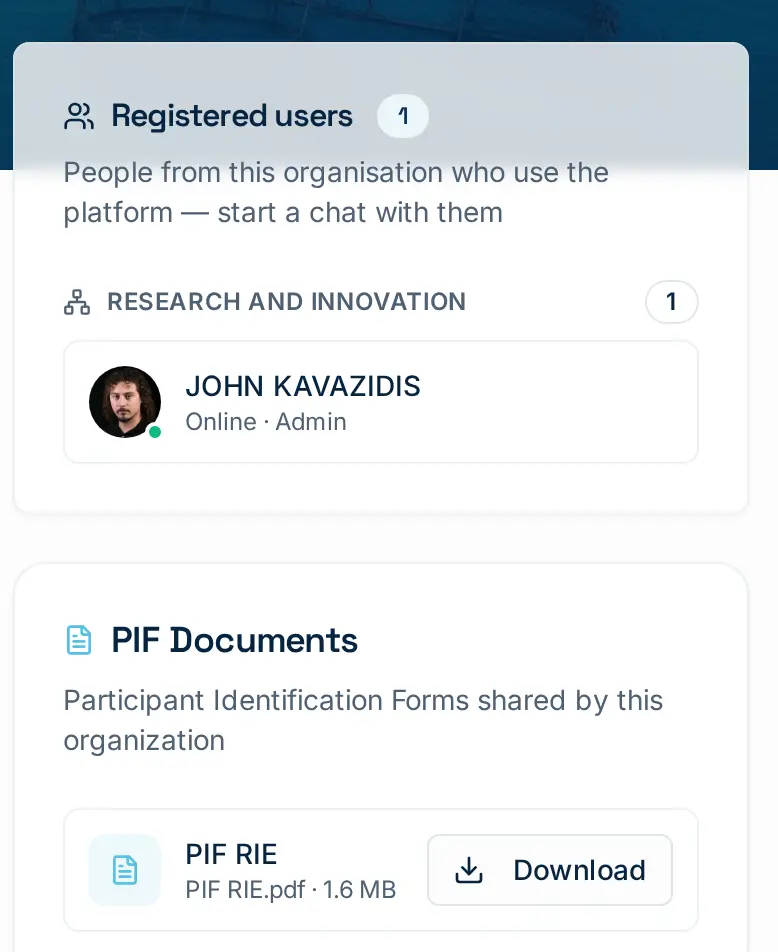
If the registered-users panel is empty, nobody from your organisation has linked their account yet, go back to step 5. If the PIF panel is empty, go back to step 4. If departments are missing, step 3.
Quick Checklist
- Account linked to the correct organisation (or join request approved)
- Organisation details complete: name, acronym, country, city, type, website, contact
- Logo uploaded
- At least one department created and members assigned
- One to three PIF documents uploaded and the AI summary generated
- Colleagues invited from Profile → Organisation
- Own partner card checked in the directory

Interreg NEXT Black Sea Basin Programme — Co-funded by the European Union
Download the AQUA-SMART app